

Be it screensavers, desktop wallpapers or font type and sizes, visual customization at the OS level is usually important to all kinds of users. Recognizing this, Microsoft has made it easier than ever to apply and adjust individual themes with Windows 7.
This time around, we are going to show you how to customize the Windows 7 login screen.
Hands-on approach
Step 1: Open the Windows Start menu and enter regedit into the search bar.
Step 2: Right click on HKEY_LOCAL_MACHINE and select Find.
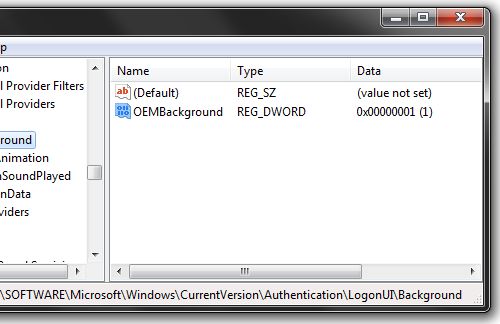
Step 3: Search for OEMBackground, which should be in Computer\HKEY_LOCAL_MACHINE\SOFTWARE\Microsoft\Windows\CurrentVersion\Authentication\LogonUI\Background. If the key does not exist, add a new DWORD value with the name OEMBackground.
Step 4: Double click on the entry OEMBackground, and change the value from 0 to 1.
Step 5: Open Windows Explorer and go to the following path: %windir%\system32\oobe.
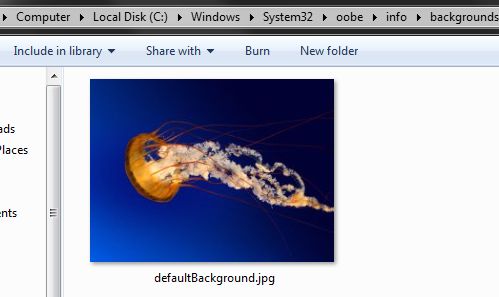
Step 6: Create a new folder named info, and open it.
Step 7: Create a new folder within info named backgrounds.
Step 8: Rename your desired wallpaper as backgroundDefault.jpg and place it inside the folder backgrounds (images must be less than 245KB in size).
That should do the trick, now just lock your PC, log off or reboot and enjoy.
No comments:
Post a Comment